# git常用命令
常用 git 命令清单 (opens new window)
git分为工作区、暂存区、版本库
- Workspace工作区:就是平时写代码的地方
- Index/Stage暂存区:staged后的文件就是在暂存区
- Repository版本库:commit 之后的文件就是在版本库
- Remote:远程仓库
# 一、新建代码库
使用当前目录作为 Git 仓库,初始化本地仓库
# 在当前目录新建一个Git代码库
$ git init

# 新建一个目录,将其初始化为Git代码库
$ git init [project-name]

# 下载一个项目和它的整个代码历史
$ git clone [url]
2
3
4
5
6
7
8
# 下载仓库
https://www.maixj.net/ict/git-clone-19977
# git clone 到指定目录,使用项目名称
$ git clone git@github.com:fncheng/repo-nav.git ~/Github/repo-nav
# git clone 到指定目录,自定义名称
$ git clone git@github.com:fncheng/repo-nav.git ~/Github/my-repo-nav
2
3
4
# 分支管理
# 新建分支
git branch <branch-name> # 从当前分支创建新分支
git branch <branch-name> <hash> ## 从指定hash记录创建新分支
2
# checkout
-b <branch>           create and checkout a new branch
-q, --quiet           suppress progress reporting
2
# 切换分支
git checkout <name>
git checkout -b <your-branch-name> #创建分支的同时并切换过去 -
git checkout -q
2
3
2.23后可以使用switch来切换分支
# 追踪远程分支
追踪
git branch (--set-upstream-to=<upstream> | -u <upstream>) [<branchname>]
git branch --track <branchname>
2
取消追踪
git branch --unset-upstream [<branchname>]
# 同时推送多个仓库
# 添加push仓库
git remote set-url --add origin --push git@gitlab.com:fncheng/blog.git
2
# 清空工作区 (checkout -- .)
git checkout .

git checkout -- .
# -- 是为了明确区分 “命令选项” 和 “文件路径”。
# 在旧版本的 Git 中,使用 -- 是为了避免文件名与命令选项冲突。
2
3
4
5
# git clean
git clean用于清理工作区
git clean -fx
# Push
git push -u origin master 是 Git 中一个常用的命令,用于将本地分支的代码推送到远程仓库中。具体含义如下:
git push: 将本地分支的代码推送到远程仓库中。-u: 指定上游分支,这样在后续的 push 和 pull 操作中,可以省略后面的参数。origin: 远程仓库的别名,默认是 origin,可以改为其他名字。master: 指定要推送到远程仓库的本地分支名称。
因此,执行上述命令时,会将本地分支名称为 master 的代码推送到名为 origin 的远程仓库上。由于使用了 -u 参数,之后的 push 和 pull 操作就可以省略掉参数了,Git 会自动根据上游分支来进行操作。
# 撤销修改(恢复文件)
- 只是在工作区修改了文件
$ git checkout -- file #撤销工作区的修改 file为文件名
修改了文件并提交到暂存区 (
git add)撤销暂存区修改(unstage)
$ git reset HEAD <file> #将file文件从暂存区移到工作区
- 执行了git commit
git reset HEAD^
# Reset
1.git reset -mixed #此为默认方式,不带任何参数的git reset,这种方式,它回退到某个版本,只保留源码,回退commit和index信息
2.git reset -soft #回退到某个版本,只回退了commit的信息,不会恢复到index file一级。如果还要提交,直接commit即可
3.git reset -hard  #彻底回退到某个版本,本地的源码也会变成为上一个版本的内容
2
3
# Undo last commit
vscode 中 undo last commit 的原理是:
$ git reset --soft HEAD~1 # 撤销上一次commit
$ git reset --hard HEAD~1 # 撤销上一次commit 并将commit的文件删除
2
请不要随意使用 git reset --hard 这将导致你的工作区所有未保存的修改丢失。
# HEAD
HEAD~ vs HEAD^ vs HEAD@{}? (opens new window)
- HEAD~2 向上移动2个节点 2 commits older than HEAD
- HEAD^2 illegal非法的,正确写法应该是 HEAD^^
- HEAD@{2} refers to the 3rd listing in the overview of
git reflog - HEAD~~ 2 commits older than HEAD
- HEAD^^ 2 commits older than HEAD
# 回退分支
git reset --mixed <commit_id> # 回退当前分支到某个提交点,混合模式
- 混合模式mixed:保留回退的提交记录,所有修改过的文件进入工作区
- 软合并soft:保留回退的提交记录,所有修改过的文件进入暂存区
- 硬合并hard:丢弃所有提交的记录,所有修改过的文件被丢弃
# 回退单个文件
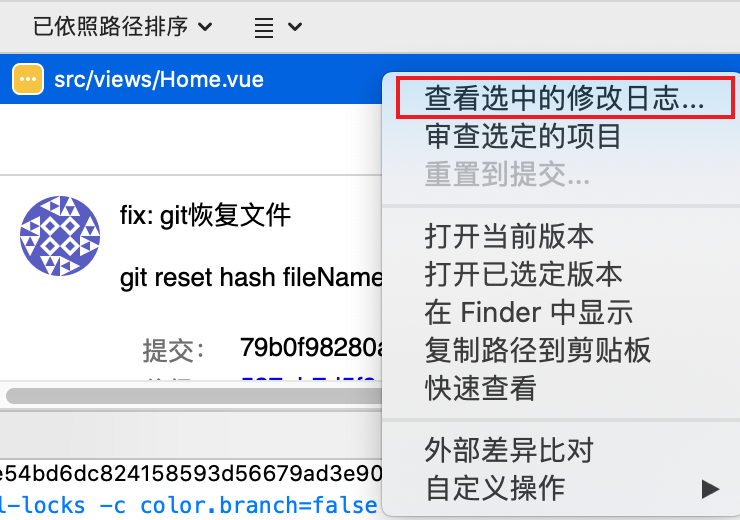
git log [fileName] # 查看文件修改记录

git reset [commitID] [fileName] # 将文件回退到指定的commitID
2
3
比如
git reset HEAD^ packages/agent-talk/src/index.vue

git checkout HEAD^ -- packages/agent-talk/src/index.vue

# 2.23+更推荐
git restore --source=HEAD^ -- packages/agent-talk/src/index.vue
2
3
4
5
6
# sourceTree回退文件:
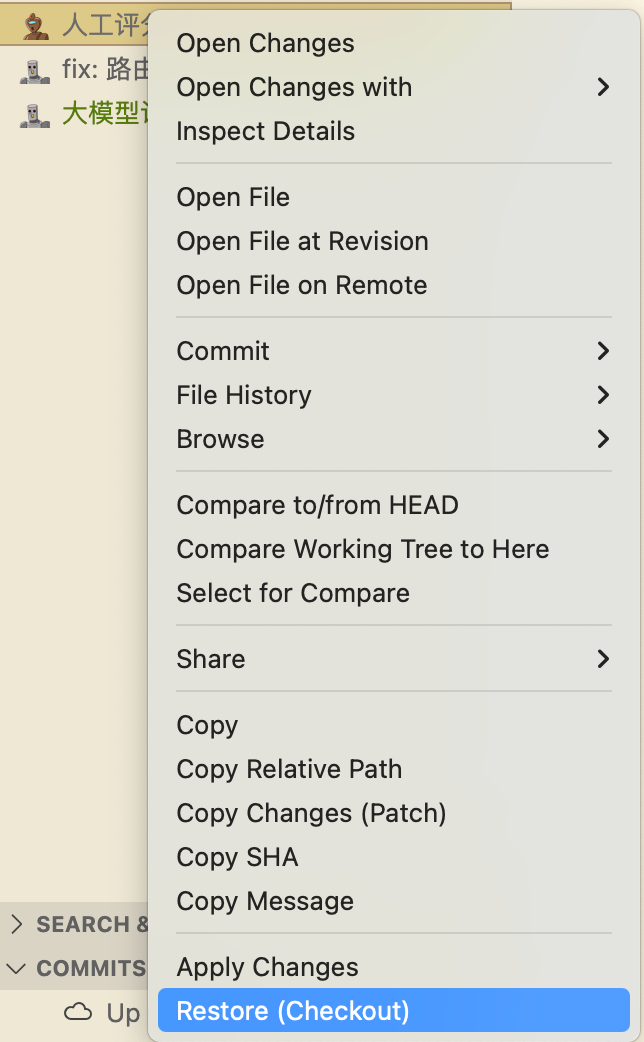
# VSCode Git Lens插件回退文件:
# 版本回退
https://wiki.jikexueyuan.com/project/git-tutorial/version-back.html
# Restore
git restore [<选项>] [--source=<分支>] <文件>...

    -s, --source <tree-ish>
                          要检出哪一个树
    -S, --staged          恢复索引
    -W, --worktree        恢复工作区(默认)
    --ignore-unmerged     忽略未合并条目
    --overlay             使用叠加模式
    -q, --quiet           不显示进度报告
    --recurse-submodules[=<checkout>]
                          control recursive updating of submodules
    --progress            强制显示进度报告
    -m, --merge           和新的分支执行三方合并
    --conflict <风格>     冲突输出风格(merge 或 diff3)
    -2, --ours            对尚未合并的文件检出我们的版本
    -3, --theirs          对尚未合并的文件检出他们的版本
    -p, --patch           交互式挑选数据块
    --ignore-skip-worktree-bits
                          对路径不做稀疏检出的限制
    --pathspec-from-file <文件>
                          从文件读取路径表达式
    --pathspec-file-nul   使用 --pathspec-from-file,路径表达式用空字符分隔
$ git restore <file>
2
3
4
5
6
7
8
9
10
11
12
13
14
15
16
17
18
19
20
21
22
23
# clean
git-clean - Remove untracked files from the working tree
$ git clean -f -q -- /Users/cheng/Benetech/wxapp/1.js
# Merge
merge就是将指定分支合并到当前分支
git merge target_branch_name # 将分支issue1合并到当前分支(dev)中,自动进行新的提交
(or) # 可以理解为
git merge issue1 (into HEAD[dev])) # 括号内为省略的内容 以dev分支为基准
git merge --no-commit dev 将分支dev合并到当前分支中,但不要自动进行新的提交
2
3
4
来看一个 merge 的例子:

git merge 就是将靠前的自己的分支合并到公共分支(当前工作分支)
git merge your_branch # 当前分支为旧分支
合并完之后,自己的分支就成旧分支了,变得靠后了。
如果要将较旧的分支 提到较新的分支 的位置,则需要将新的分支合并到旧的分支。
git merge new_barnch into (old_branch) # 当前分支是old_branch
手动合并(不立即提交合并的改动)
git merge --no-commit chengdev
# git merge --squash
git merge --squash develop_xxx
git merge --squash 命令可以将多次提交合并为一个提交。它的原理是:在进行合并操作时,不生成新的合并提交,而是将所有需要合并的提交应用到当前分支上,同时合并结果会以未提交的方式出现在你的工作目录中,你可以在合并操作完成后手动执行 git commit 命令来创建新的提交,从而将所有合并操作压缩为一个提交。
# git merge --no-commit
git merge --no-commit 命令可以执行分支合并操作,但是不自动创建新的合并提交。这通常用于需要手动解决合并冲突的情况。
# 合并指定文件(checkout)
当我们做一些定制化需求时,通常会基于开发分支比如dev分支checkout 一个分支出来开发,然后在dev上进行一些通用功能的开发。假如我们现在有一部分dev上的功能要添加到release上,该怎么做
merge dev into release?
这样会把dev上的所有功能都迁移过来,不符合要求
cherry-pick?
cherry-pick是将一个文件的某个特定提交(commit)合并过来,貌似可行,不过需要去一个个查看commit id
其实checkout也可用来提取特定文件
git checkout dev -- path/to/your/file
这样做的效果是只将 dev 分支上的某个文件合并到 release 分支
# Rebase
rebase 的英文意思是重定基准
http://jartto.wang/2018/12/11/git-rebase/
git rebase master # 将当前分支重定到master分支上
# 原来是dev、master分支并行开发,现在变成了  master->dev 的顺序
git rebase (HEAD) onto target_branch
2
3
再看 rebase 的例子:
rebase 之前

如果要将 issue1 合并到 dev 上,可以执行git merge issue1操作
git  dev
# 等价于
# git reabse (HEAD[issue1] onto) dev
# 将当前分支的变更 rebase 到dev分支 重定基准(以dev为基准,在dev上变化)
# 将当前分支的变更 rebase 到指定分支

# 实际上就是将当前分支(issue1)的内容复制一份到dev分支上,时间线不变
git rebase (current_branch onto) dev
2
3
4
5
6
7
8
rebase 之后


rebase的过程实际上是将当前变更复制(pick)一份出来到指定分支 上去,从rebase的操作记录中也可以看出:

# rebase对比merge
看merge和rebase的历史线对比,蓝色的是rebase,红色的是merge。

# 中止reabse
git rebase --abort
# 撤销rebase
首先执行 git reflog 查看当前分支的git操作记录

记住rebase之前的commit-ID (SHA-1值)
然后
git reset --hard 6cdb64a
即可将当前分支重置到指定的cmmit
# 交互式rebase合并commit
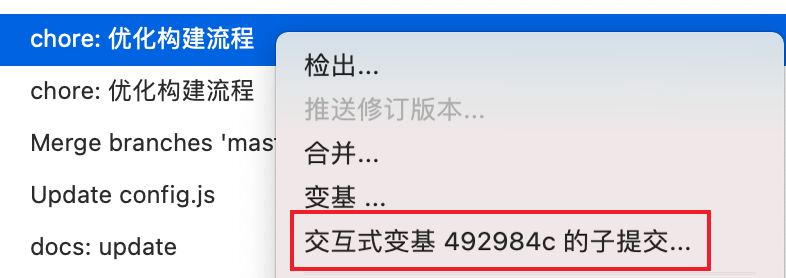
# rebase -i
在worktree的项目中使用git rebase -i提示`The editor could not be opened because the file was not found.
发现.git/worktree/agents-share-web/rebase-merge/git-rebase-todo 找不到
这是因为worktree的项目下的.git是一个文件,而不是一个目录,具体的信息保存在主仓库的.git目录下
解决办法:
换用别的编辑器,比如vim
GIT_EDITOR=vim git rebase -i HEAD~2
# 使用git rebase修改提交用户名和邮箱
假设你要修改从某个提交开始直到当前的提交(比如最近两个/三个)
方式1:使用 rebase -i
git rebase -i HEAD~3
把需要修改的那几条 pick 改成 edit
然后每停下来一次执行:
git commit --amend --author="Your Name <you@example.com>"
git rebase --continue
2
# rebase保留原有提交时间
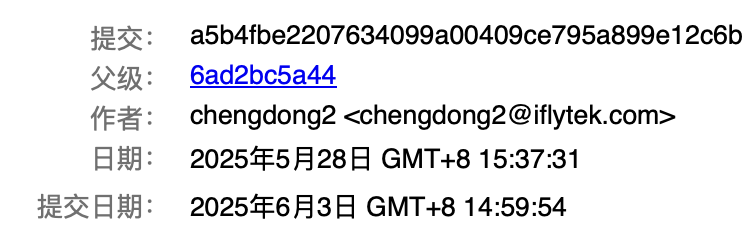
使用rebase时默认情况下提交时间会变成reabse的时间,其实要保留原有的提交时间也是可以的
git rebase --committer-date-is-author-date main
这样,提交时间会强制设为作者时间
git中有commit date和author date
# Revert
# 回退某个commit
git revert <commit>
-n, --no-commit:只抵消暂存区和工作区的文件变化,不产生新的提交。
2
revert连续的提交
git revert -n commit1^..commit2 # (包含commit1)
git commit -m "Revert commit1 to commit2"
# Usually the command automatically creates some commits with commit log messages stating which commits were reverted. This flag applies the changes necessary to revert the named commits to your working tree and the index,but does not make the commits. In addition, when this option is used, your index does not have to match the HEAD commit. The revert is done against the beginning state of your index.This is useful when reverting more than one commits' effect to your index in a row.
2
3
# fetch & pull
git fetch
抓取所有远端更新
是将远程主机的最新内容拉到本地,用户在检查了以后决定是否合并到工作本机分支中。
git pull
拉取指定远程分支到本地当前分支
git pull的过程可以理解为
git fetch origin master # 从远程主机的master分支拉取最新内容
git merge FETCH_HEAD    # 将拉取下来的最新内容合并到当前所在的分支中
2
完整格式:
$ git pull <远程主机名> <远程分支名>:<本地分支名>
# 如果远程分支是与当前分支合并,则冒号后面的部分可以省略:
$ git pull origin next
2
3
# rm
# 删除远程跟踪的文件但不删除本地文件
git rm --cached path/to/file.js
# cherry-pick
# 合并某个指定提交commit到指定分支上
git cherry-pick <commit id>...
# 将指定提交复制到当前分支(HEAD)所在位置

git cherry-pick <commit id> --no-commit
# 不进行自动合并

git cherry-pick A..B # 表示连续的A-B提交,其中 提交 A 必须早于提交 B
2
3
4
5
6
7
注意,使用上面的命令,提交 A 将不会包含在 Cherry pick 中。如果要包含提交 A,可以使用下面的语法。
git cherry-pick A^..B
在提交信息的末尾追加一行(cherry picked from commit ...),方便以后查到这个提交是如何产生的。
git cherry-pick -x
# diff -- 文件比对
https://git-scm.com/docs/git-diff
对比两次commit
git diff <commit1> <commit2>
# 对比指定文件
git diff <commit1> <commit2> <path_file>
2
3
使用工具
git difftool
# 第一次使用会遇到提示
This message is displayed because 'diff.tool' is not configured.
See 'git difftool --tool-help' or 'git help config' for more details.
'git difftool' will now attempt to use one of the following tools:
2
3
4
5
使用vscode插件gitlens会有较好的体验
# log
git log --name-only # 查看每次commit修改了哪些文件
# tag
git标签使用
git tag <tag-name>
# 给特定提交打标签
git tag <tag-name> <commit-hash>
# 如果你只想查看符合特定模式的标签,可以使用 -l 选项配合模式:
git tag -l "v1.*"
2
3
4
5
通过tag查找对应commit hash
git rev-parse '1.0-Build1220_develop_v1.6.3'
Git进阶命令 →