# 安装使用
安装 Echarts
npm init
npm install echarts --save
2
引入
import echarts from 'echarts';
按需引入
// 基于准备好的dom,初始化echarts实例
var myChart = echarts.init(document.getElementById('main'));
// 绘制图表
myChart.setOption({
    title: {
        text: 'ECharts 入门示例'
    },
    tooltip: {},
    xAxis: {
        data: ['衬衫', '羊毛衫', '雪纺衫', '裤子', '高跟鞋', '袜子']
    },
    yAxis: {},
    series: [{
        name: '销量',
        type: 'bar',
        data: [5, 20, 36, 10, 10, 20]
    }]
});
2
3
4
5
6
7
8
9
10
11
12
13
14
15
16
17
18
# 概念
# 系列 (series)
系列(series (opens new window))是指:一组数值以及他们映射成的图。
一个 系列 包含的要素至少有:一组数值、图表类型(series.type)、以及其他的关于这些数据如何映射成图的参数。
{
          name: '邮件营销',
          type: 'line',
          stack: '总量',
          areaStyle: {},
          data: [120, 132, 101, 134, 90, 230, 210]
 },
2
3
4
5
6
7
# xAxis.splitLine 分隔线
xAxis.splitLine:{
  lineStyle:{
    type: 'solid' | 'dashed' | 'dotted'  // 实现 | 虚线 | 点线
  }
}
2
3
4
5
# 线性渐变 series-line
series{
  type: 'line', // 折线图
  name: 'line-chart', // 系列名称,用于tooltip的显示,legend 的图例筛选,在 setOption 更新数据和													 配置项时用于指定对应的系列。
  smooth: true, // 是否平滑曲线,默认false。可以用数字0-1表示,0 折线,1 曲线。true=0.5
}
2
3
4
5
# 组件(component)
# title组件
https://echarts.apache.org/zh/option.html#title.target
title:{
  id: String,
  show: Boolean,
  text: String,
  link: String,
  target: String
}
2
3
4
5
6
7
echarts 中至少有这些组件:
xAxis (opens new window)(直角坐标系 X 轴)、yAxis (opens new window)(直角坐标系 Y 轴)、grid (opens new window)(直角坐标系底板)、angleAxis (opens new window)(极坐标系角度轴)、radiusAxis (opens new window)(极坐标系半径轴)、polar (opens new window)(极坐标系底板)、geo (opens new window)(地理坐标系)、dataZoom (opens new window)(数据区缩放组件)、visualMap (opens new window)(视觉映射组件)、 (opens new window)(提示框组件)、toolbox (opens new window)(工具栏组件)、series (opens new window)(系列)、...
# legend
https://echarts.apache.org/zh/option.html#legend
// 图例组件
legend: {
    data: ['邮件营销', '联盟广告', '视频广告', '直接访问', '搜索引擎']
},
2
3
4

legend.name = series.name
legend.icon 图例图标 https://echarts.apache.org/zh/option.html#legend.icon
ECharts 提供的标记类型包括

'circle', 'rect', 'roundRect', 'triangle', 'diamond', 'pin', 'arrow', 'none'

可以通过 'image://url' 设置为图片,其中 URL 为图片的链接,或者 dataURI。
2
3
4
5
# 类目轴和非类目轴
https://www.oschina.net/question/3784921_2274394
类目轴就是横坐标标签类型为类目(type: 'category')的坐标轴 坐标刻度值不是属于数据连贯
非类目轴就是除了标签类型为类目的其他坐标轴,有 时间(time),数值(value),对数(log)3种
# grid
直角坐标系
图表网格,图表超出屏幕后可以设置left、right等属性,作用类似于padding
# Tooltip
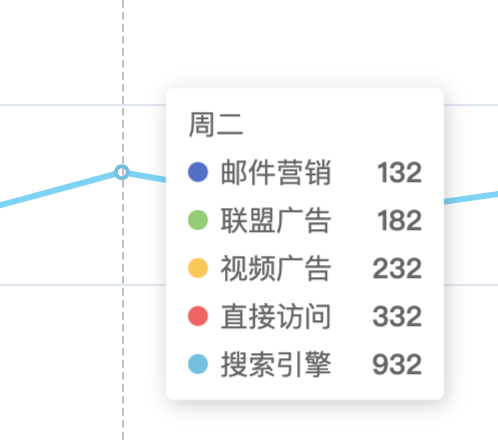
# AxisPointer指示器类型
可选
'line'直线指示器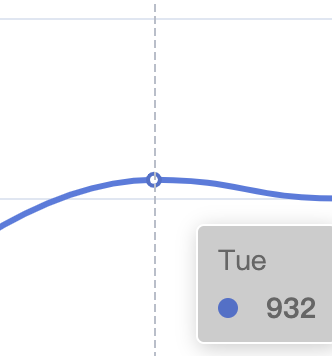
'shadow'阴影指示器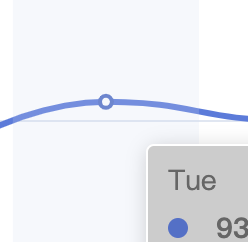
'none'无指示器'cross'十字准星指示器。其实是种简写,表示启用两个正交的轴的 axisPointer。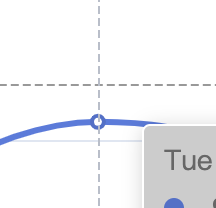
# tooltip.formatter (opens new window)
第一个参数 params 是 formatter 需要的数据集。
在 trigger (opens new window) 为 'axis' 的时候,或者 tooltip 被 axisPointer (opens new window) 触发的时候,params 是多个系列的数据数组
tooltip:{
        trigger: 'axis',
        formatter(params) {
            // console.log('params',params)
            return `
                ${params[0].axisValue}
                <br/>
                ${params[0].marker}
                ${params[0].seriesName}: ${params[0].value}%
                <br/>
                ${params[1].marker}
                ${params[1].seriesName}: ${params[1].value}%
            `
        }
    },
2
3
4
5
6
7
8
9
10
11
12
13
14
15
自定义Tooltip
tooltip: {
    trigger: 'item',
    formatter: function(params) {
        // 自定义Tooltip的内容,使用模板字符串
        return '<div style="font-weight: bold;">' + params.name + '</div>' +
               '<div>数值: ' + params.value + '</div>';
    }
},
2
3
4
5
6
7
8
打印params
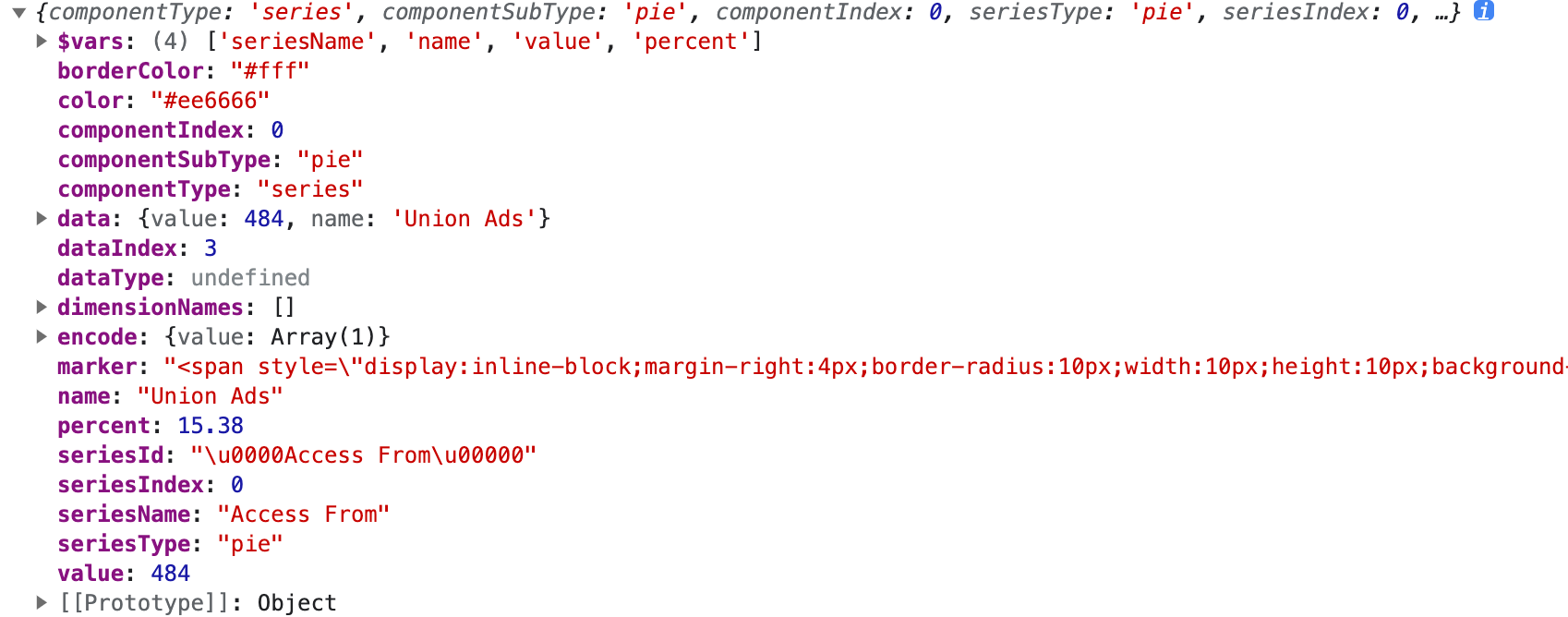
# backgroundColor
# trigger (opens new window)
触发类型
'item'数据项图形触发,主要在散点图,饼图等无类目轴的图表中使用。
'axis'坐标轴触发,主要在柱状图,折线图等会使用类目轴的图表中使用。
'none'什么都不触发。
#
# yAxis坐标轴
yAxis: {
    type: 'value',
    axisTick: {
      show: false,
    },
    axisLine: { // 坐标轴轴线相关设置。
      show: false
    },
    splitLine: { // 坐标轴在 grid 区域中的分隔线。
      show: true
    }
  },
2
3
4
5
6
7
8
9
10
11
12
# axisTick
刻度线
# Line-Chart
# 设置线条样式
https://echarts.apache.org/zh/option.html#series-lines.lineStyle.color
xAxis: {
  // 类目轴
  type: 'category',
  // X 轴分隔线样式
  splitLine: {
    show: true,
    lineStyle: {
      color: ['#f3f0f0'],
      width: 2,
      type: 'dotted'
    }
  },
  // x轴数据
  data: dataX
},
2
3
4
5
6
7
8
9
10
11
12
13
14
15
设置canvas和父容器之间的空白
https://www.hangge.com/blog/cache/detail_2161.html#
通过 grid 属性来控制直角坐标系内绘图网格四周边框位置
数值单位px,支持百分比(字符串)
grid:{
    top:  60,
    right: 60,
    bottom: 60,
    left: 60,
}
2
3
4
5
6
# API
# echartsInstance. (opens new window) getOption (opens new window)
获取当前实例中维护的 option 对象,返回的 option 对象中包含了用户多次 setOption 合并得到的配置项和数据,也记录了用户交互的状态,例如图例的开关,数据区域缩放选择的范围等等。所以从这份 option 可以恢复或者得到一个新的一模一样的实例。
# 饼图
半饼图
原理是data中多一组数据为所有数据之和,然后隐藏该组数据,设置
series-pie.itemStyle.opacity = 0另外设置起始角度 startAngle = 180 echarts饼图角度起始角度位置和生长方向 (opens new window)
data: [
  { value: 1000, name: '搜索引擎' },
  { value: 500, name: '直接访问' },
  { value: 1500,
    name: '总量',
    itemStyle: {
      // color: 'rgba(255,255,255,0)'
      opacity: 0,
    }
  },
]
1
2
3
4
5
6
7
8
9
10
11饼图中间对文字label
# 常见问题
# echarts图表随着页面缩小而变化
当页面缩小时,Echarts 默认情况下不会自动随着页面变化而调整大小。但是你可以通过监听 window 的 resize 事件来手动调整 Echarts 图表的大小。
const chart = echarts.init(node.current);
        chart.setOption(option);
        window.addEventListener('resize', function () {
            chart.resize();
        });
2
3
4
5
# 在小程序中使用Echarts
# 使用图表
在data 中绑定{ ec: onInit }
// wxml
<!-- 饼形图 -->
<view class="pie-container canvas">
  <ec-canvas id="pie-chart" canvas-id="ringCanvas" ec="{{ ec }}"></ec-canvas>
</view>
2
3
4
5
function initChart(canvas, width, height, dpr) {
  chart = echarts.init(canvas, null, {
    width: width,
    height: height,
    devicePixelRatio: dpr, // new
  })
  canvas.setChart(chart)

  var option = {
    backgroundColor: '#ffffff',
    series: [
      {
        label: {
          normal: {
            fontSize: 14,
          },
        },
        type: 'pie',
        center: ['50%', '50%'],
        radius: ['20%', '40%'],
        data: [], // data可以延迟加载
      },
    ],
  }

  chart.setOption(option)
  return chart
}
// Page
data: {
  ec: {
    onInit: initChart
  }
},
2
3
4
5
6
7
8
9
10
11
12
13
14
15
16
17
18
19
20
21
22
23
24
25
26
27
28
29
30
31
32
33
34
# 常见问题
# 报错:thirdScriptError Cannot read property 'setOption' of undefined
修改option 后设置 chart.setOption(option1) 会发生上述报错
如果使用setTimeout 则不会报错。
分析原因:应该是初始化时chart实例还未完成此时,此时获取不到chart实例
柱状图 →