# 表格元素
tr table row的缩写
th table head 的缩写
td table data的缩写,表格数据单元格
# 表格边框
table {
      border: 1px solid salmon;
      border-collapse: collapse;
    }
    th,td {
      border:  1px solid #000;
      border-collapse: collapse;
    }
1
2
3
4
5
6
7
8
2
3
4
5
6
7
8
# 合并边框(边框重叠问题)
border-collapse
border-collapse: collapse;
1
# 合并单元格
colspan属性
rowspan属性
# 嵌套表格
使用scope属性
scope (opens new window) 属性,可以添加在<th> 元素中,用来区分这个单元格到底是列标题,还是行标题
<tr>
  <th :rowspan="4" scope="rowgroup">实验室检查</th>
  <th scope="row">血常规</th>
  <td :colspan="4">2</td>
</tr>
<tr>
  <th scope="row">尿常规</th>
  <td :colspan="4">2</td>
</tr>
<tr>
  <th scope="row">微量元素</th>
  <td :colspan="4">2</td>
</tr>
<tr>
  <th scope="row">超声检查</th>
  <td :colspan="4">2</td>
</tr>
1
2
3
4
5
6
7
8
9
10
11
12
13
14
15
16
17
2
3
4
5
6
7
8
9
10
11
12
13
14
15
16
17
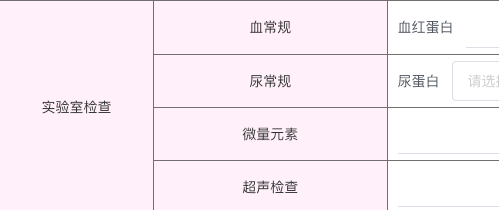
# 表单和表格的嵌套
比较难懂的地方:
- 表单与表格的嵌套必须将表单写在外面,因为表格有嵌套规则,table与tr之间不可以用其他标签。
- 不要写错colspan和rowspan,合并之后多余的单元格要删除!!
# 多重表格嵌套

<!-- 1 -->
            <tr>
              <th rowspan="6" colspan="3" >
                生殖器
              </th>
              <th rowspan="2" colspan="3">
                肛查(常规)
              </th>
              <th colspan="3">外阴</th>
              <td colspan="6">11</td>
              <th colspan="3">分泌物</th>
              <td colspan="6">123</td>
            </tr>
            <!-- 2 -->
            <tr>
              <th colspan="3">子宫</th>
              <td colspan="6">11</td>
              <th colspan="3">附件</th>
              <td colspan="6">123</td>
            </tr>
            <!-- 3 -->
            <tr>
              <th rowspan="3" colspan="3">
                阴道检查(必要时)
              </th>
              <th colspan="3">外阴</th>
              <td colspan="6">11</td>
              <th colspan="3">阴道</th>
              <td colspan="6">123</td>
            </tr>
            <!-- 4 -->
            <tr>
              <th colspan="3">宫颈</th>
              <td colspan="6">11</td>
              <th colspan="3">子宫</th>
              <td colspan="6">123</td>
            </tr>
            <!-- 5 -->
            <tr>
              <th colspan="3">附件</th>
              <td colspan="6">11</td>
              <th colspan="3">附件</th>
              <td colspan="6">123</td>
            </tr>
            <!-- 6 -->
            <tr>
              <th colspan="3">生殖器检查</th>
              <td colspan="18">11</td>
            </tr>
1
2
3
4
5
6
7
8
9
10
11
12
13
14
15
16
17
18
19
20
21
22
23
24
25
26
27
28
29
30
31
32
33
34
35
36
37
38
39
40
41
42
43
44
45
46
47
48
49
2
3
4
5
6
7
8
9
10
11
12
13
14
15
16
17
18
19
20
21
22
23
24
25
26
27
28
29
30
31
32
33
34
35
36
37
38
39
40
41
42
43
44
45
46
47
48
49
其实scope="rowgroup"和scope="row" 可以不用写,表格也能正常出来,所以scope属性的作用?未知
所以其实这里全用td标签也是没问题的,起作用的是rowspan属性。
# 表格宽度设置
通过<col> 元素设置宽度
<style>
  table {
    width: 100%;
  }
  .table-border,
  th,
  td {
    border: 1px solid #000;
    border-collapse: collapse;
  }
</style>

<table class="table-border">
  <caption>Superheros and sidekicks</caption>
  <colgroup>
    <col style="width: 10%" />
    <col style="width: 20%" />
    <col style="width: 10%" />
    <col style="width: 40%" />
    <col style="width: 20%" />
  </colgroup>
  <tbody>
    <tr>
      <th scope="col" colspan="2">Batman</th>
      <th scope="col">Robin</th>
      <th scope="col">The Flash</th>
      <th scope="col">Kid Flash</th>
    </tr>
    <tr>
      <th scope="row">Skill</th>
      <td>Smarts</td>
      <td>Dex, acrobat</td>
      <td>Super speed</td>
      <td>Super speed</td>
    </tr>
  </tbody>
</table>
1
2
3
4
5
6
7
8
9
10
11
12
13
14
15
16
17
18
19
20
21
22
23
24
25
26
27
28
29
30
31
32
33
34
35
36
37
2
3
4
5
6
7
8
9
10
11
12
13
14
15
16
17
18
19
20
21
22
23
24
25
26
27
28
29
30
31
32
33
34
35
36
37
# table-layout的作用
当不设置table-layout,即table-layout默认auto时,如果单元格内容超出了我们设置的宽度,会将单元格撑开,而这时宽度不再是我们设置的宽度了。
而设置了table-layout: fixed; 后,单元格宽度固定为我们设置的宽度,如果内容超出,并不会拉长单元格。
会遮盖住后续单元格的内容。
# 固定表头
给表格第一列设置position: sticky;,同时表格单元格必须是固定宽度,可以设置min-width
table不能再是宽度100%了。注意固定的单元格需要设置z-index
table {
        /* width: 100%; */
        border: 1px solid #d7d7d7;
        border-collapse: collapse;
        table-layout: fixed;
        position: relative;
      }
th,
      td {
        min-width: 800px;
        border: 1px solid #d7d7d7;
        border-collapse: collapse;
      }
      tr th:first-child,
      td:first-child {
        position: sticky;
        left: 0;
        background-color: salmon;
      }
1
2
3
4
5
6
7
8
9
10
11
12
13
14
15
16
17
18
19
2
3
4
5
6
7
8
9
10
11
12
13
14
15
16
17
18
19
# table min-height不生效
对于table元素,如th、td来说,
使用height属性就等效于min-height属性了,
如果表格内容高度大于所设定的高度值,表格会自己扩大高度以适应内容的
# 表格边框粗细不一致的问题
在Chrome90以上的版本原生table出现部分边框大小不一致的情况。
css如下
table {
  border: 1px solid #d7d7d7;
  border-collapse: collapse;
  table-layout: fixed;
}
th,
td {
  border: 1px solid #d7d7d7;
  border-collapse: collapse;
}
1
2
3
4
5
6
7
8
9
10
2
3
4
5
6
7
8
9
10
**原因:**由border-collapse引起的
解决办法:
修改为border-collapse: separate;并且去除掉th td的border
table {
  border-collapse: separate;
  border-spacing: 1px;
  background-color: #d7d7d7;
  table-layout: fixed;
}
1
2
3
4
5
6
2
3
4
5
6